In any case if you’re having trouble with video star pro and wanted to cancel the pro subscription, this tutorial is only for you. In this tutorial, I’ll be guiding people who’re searching how to cancel video star subscription. Moreover, I’ll be specifying the reasons that may prevent you to cancel; instead you may wanted to keep it. Let’s get to the topic directly
How to cancel video star subscription
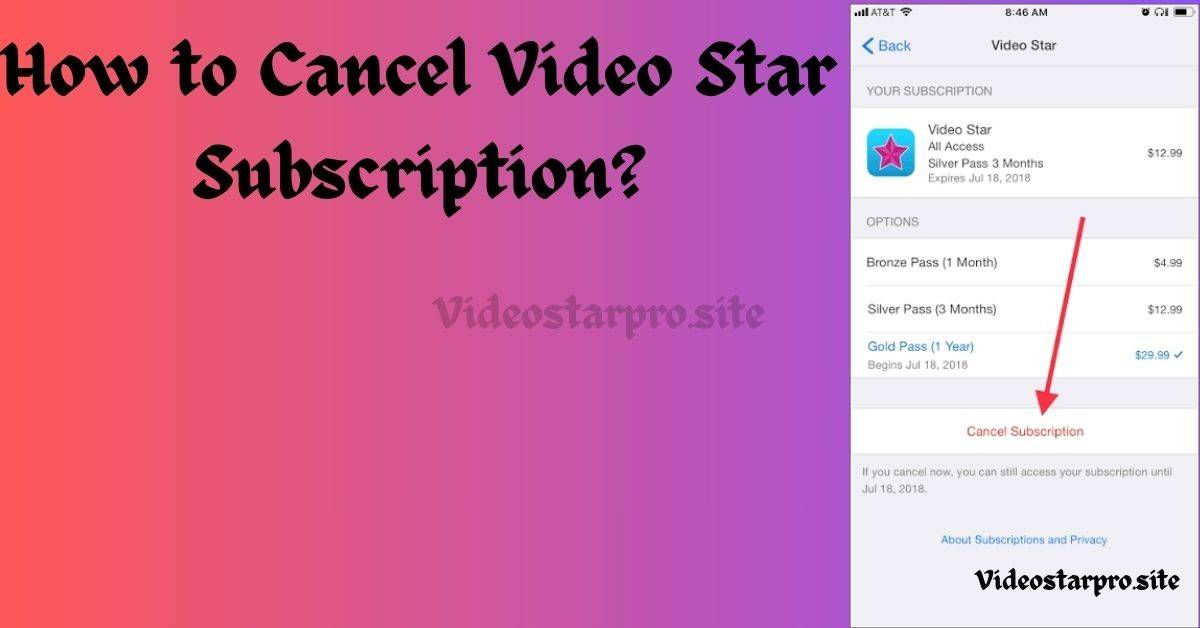
To cancel the pro subscription, simply follow the given step below.
Step 1 – Open the settings on iphone and tap on the Apple ID or your name (at the top).
Step 2 – look for the “active subscription”
Step 3 – Select video star pro from the subscription list
Step 4 – Tap on “cancel subscription” and confirm it.
You’ve now successfully cancelled the pro subscription and now let’s talk about why you should keen the video star pro.
If you’re looking for the pricing comparison of video star pro packs, check out the other article.
Video Star Pro Features
There are plenty of amazing advance toolset for complex editing that you’ll loose if you cancel the pro subscription of video star. Let’s break it down properly:-
Velocity & Twixtor-style Editing Features – Custom speed curves and advanced toolset for velocity edits.
All Advance Pro Packs Access – Unlimited packs or filters.
Pro level Multi-Layering
Custom Masking & Coloring – Smooth masking and coloring features.
No watermarks – No watermarking issue with the pro version, the edits belongs to you only.
Comparison: Pro vs Free – Which one is better?
1- All Packs ( Effects & Filters) –
Pro Version – Full access
Free Version – Restricted (have to buy individually otherwise)
2 – Velocity edits –
Pro version – Custom curves available
Free version – Only Basic movement available
3 – Multi-layer Toolset –
Pro version – Complete access
Free version – Limited access
4 – Watermark –
Pro version – No watermark
Free version – Watermark on exports
5 – Quality while exporting –
Pro version – Highest resolution as per your need
Free version – Standard Resolution available
When did video star come out?
Video star app was launched on September 28, 2011 in the United States of America. It was exclusively available for iOS devices, designed by frontier design group.
Does video star cost money?
Yes, it does cost money to avail the access to its premium features which includes power packs, advanced toolset and watermark free smooth exports.
Can you get video star on pc?
No, video star is exclusively available for iOS devices ( iPad, iPhone & iPod touch).
Conclusion
Now, I’ve done my part, explaining all the reasons why you should keep it. However, if you only use video star pro for basic edits and that too occasionally, you may cancel the pro subscription while sticking with the free version.
If you’re a college grad and using Video star app. You might be wondering about the price of video star pro and what features you’ll get if you buy the video star pro app. Wait no more, I’ll be answering all the queries regarding how much is video star pro and other related questions.
What is Video Star?
Let’s start with basic, video star is an editing app for iphone and iPad users that allows various editing filters & features. It was launched in 2011 and have become quite a popular among video or image editors.
Well, the pricing generally depends on the needs of the users as it offers variety of subscription models.
Model 1 – Monthly Subscription – It costs $5.99 to use it for a month. Rated best for beginners or quick editors.
Model 2 – Quaterly Subscription – It costs $17.99 to experience all the features. One of the best deal for part time editors or someone who’s learning the picture editing.
Model 3 – Yearly Subscription – It costs $34.99 for a year. A offer that full time users enjoy the most as it enables them to use it for a year at an affordable price.
If you’re beginner and wanted to learn all the basics of Video star, just click on the link.
Other than these 3 models, video star also offers various individual versions.
These will be available for life as “Power Packs” inside your app, it is best if you don’t want a headeche of recurring subscription notification.
1 –Multi layer Power Pack – One-time fee of $9.99 ( Essential if you’re using complex overlays and transitions)
2 – Cinema Pro Power Pack – It costs one time fee of $7.99 ( Essential for unlocking elite filters and advanced color grading )
3 – Motion Madness Effects Pack – It costs $5.99 one-time fee ( Important to unlock all the motion effects)
4 – Crazy Party Effects Pack – It costs $2.99 one-time fee to get the access of crazy party effects for lifetime.
Video Star is one of the easy to use editing app that offers phenomenal variety of effects and filters. This app can transform you edits to the superior level if used right. So lets dive into the article explaining all the features, new added effects, and with all the tutorials of how to use Video star pro app.
How VideoStar Pro works?
Video Star is an effects-heavy video and image editor app designed for creative, fast-paced edits. It features animated clips, color & layered effects, readymade “power packs” of effects.
Project Timeline & Layers: Firstly import videos/photos, place them on a timeline, then add any of mentioned effects and other keyframe parameters. VideoStar allows multi-layer compositing (clips, overlays, text). Effects & Power Packs: Some effects are clustered into “power packs” (you have to buy to unlock). These effects includes zoom in/zoom out, visual filters, intros/outros, transitions and other advanced tool. Keyframe & Re-time Tools: Re-timing, motion cutting or keyframing and repeat/clone effects are centre to many popular VideoStar edits (used widely for professional edits and music video-style transitions).
How to use VideoStar on Android?
It is exclusively available for IOS Devices only, Not for PC or Android Devices. Sharing the steps to use it on iphone.
Install & open the app. Download from Apple store. Give permissions for storage and microphone if you are going to record audio.
Select a new project. Tap on “New Project” . Choose aspect size ratio depending on platform (9:16 for Reels/Instagram, 16:9 for YouTube).
Import Image or Videos. Add all the video clips and pictures from your phone gallery. Trim the video clips on the timeline by dragging endpoints.
Add effects / filters. Open the effects cluster and tap to apply. Many effects can be layered automatically. If an effect is locked, you’ll see an in-app purchase or subscription option.
Keyframe & adjust. Tap the effect option to add keyframes, changing scale and position, color over time. Use re-time options to create speed ramps. Below a complete tutorials on how to change transitions.
Add music / audio. Import your audio or use given device tracks. Sync cuts to beats by using the timeline.
Export. Choose export quality and save to your gallary. Higher quality {1080 P) exports may take longer and use more storage.
Note: Free versions may add watermarks of Video-star unless you unlock pro feature.
Videostar Effects
Currently, 16 images coloring are available alongside the various other features
Bright Magic effect
Dark Magic effect
Warm Magic effect
Cool Magic effect
Vivid Magic effect
Subtle Magic effect
B&W Magic effect
Mono Magic effect
Duo Magic effect
Fall Magic effect
Winter color effect
Summer colors effect
Spring colors effect
Barbenhiemer effect
Pastel color effect
Hue desat effect
Video Star Pro Subscription Guide
If you want to explore all the amazing features it provides, Get the Subscription. There are various types of subscription you can go for; majorly depends on the requirements of your editing.
Categories of Subscription
Bronze Subscription – It allows you to use all the pro features for 1 Month for $5.99. It’s best you just wanted to give it a shot at first. Thereafter you can go higher subscription models if you using it.
Silver Pass – It gives you the freedom to use the features for 3 months at $17.99. One of the best for trespassing users who uses limited editing tools for just a short period of time.
Gold Pass – This model provides a complete package of features for 1 year at $34.99. It’s the best and the most reasonable & affordable offer you can get from Videostar. It allows full time users or editors who works for companies and freelancing.
So all this info was related to the time period and the pricing. Now, how you can access the subscription model on your IPhone, let’s start with that.
How to change the Subscription Model
Struggling with changing the model of Pro Subscription or to stop auto renewal?
Notes – for iPhone users
Step 1 – Open the Settings section on Iphone, scroll a bit down and select iTunes & App Store
Step 2 – Now, select on the appeared Apple ID & Select “View Apple ID “
Step 3 – Choose the Subscription & Select the Video-Star model (Bronze, Silver, Gold) whichever you want to upgrade to.
Step 4 – Cancel the Subscription or Stop the renewal (in case you want to off the auto-renewal)
Add Video Star Coloring Easily
Coloring using video star is not that complex, yet sharing a Youtube video for your personal guide and better understanding.
Pricing & subscription model
Free-to-download with in-app purchases: VideoStar provides many free features but advanced effects and full access require purchases.
Power packs: Some power packs are available as single purchases with price ranges appx $5.99 to $34.99 depending on the pack.
Video Star Zoom in or Zoom out Tutorial
Hey folks, learning a video star zoom features in 2026 will be a bold move to get all those bouncy effects and luxury feel to your edits. However, it’s not that easy to learn something like that if you’re new to this app. Worry not, here comes my expertise, I’ll be helping you to get it done instantly with wasting your time & energy. Let’s go – How to Zoom in Video Star
Let’s begin upgrading your edits! We’ll be learning zoom with a rebound graph first
Step 1 – Go on your clip, press new and enter Multi layer
Step 2 – At layer one – Click your photo and press edit key frames.
Step 3 – Go to the end of the clip and Zoom in or Zoom out as much as your want to. ( Recommended size 150%
Step 4 – Go to Customs graph and choose bezier and drag the graph line at centre to the end the bottom southwest and you’re done.
Alternatives
If VideoStar’s montly pricing or efficiency worries you, look at other video editors like:-
CapCut
Kinemaster
InShot
Each has different strengths and weakenesses for timelines, effects, speed, or price.
Video star is one of the most popular and demanding editing app that turns normal videos and images into a flawless click. So, this was all the information about Video star pro app. I am glad to share every inch of details that is possible regarding it. If anything bothers you, contact us on the given mail or you can go for the Youtube tutorials also.